Choose a view
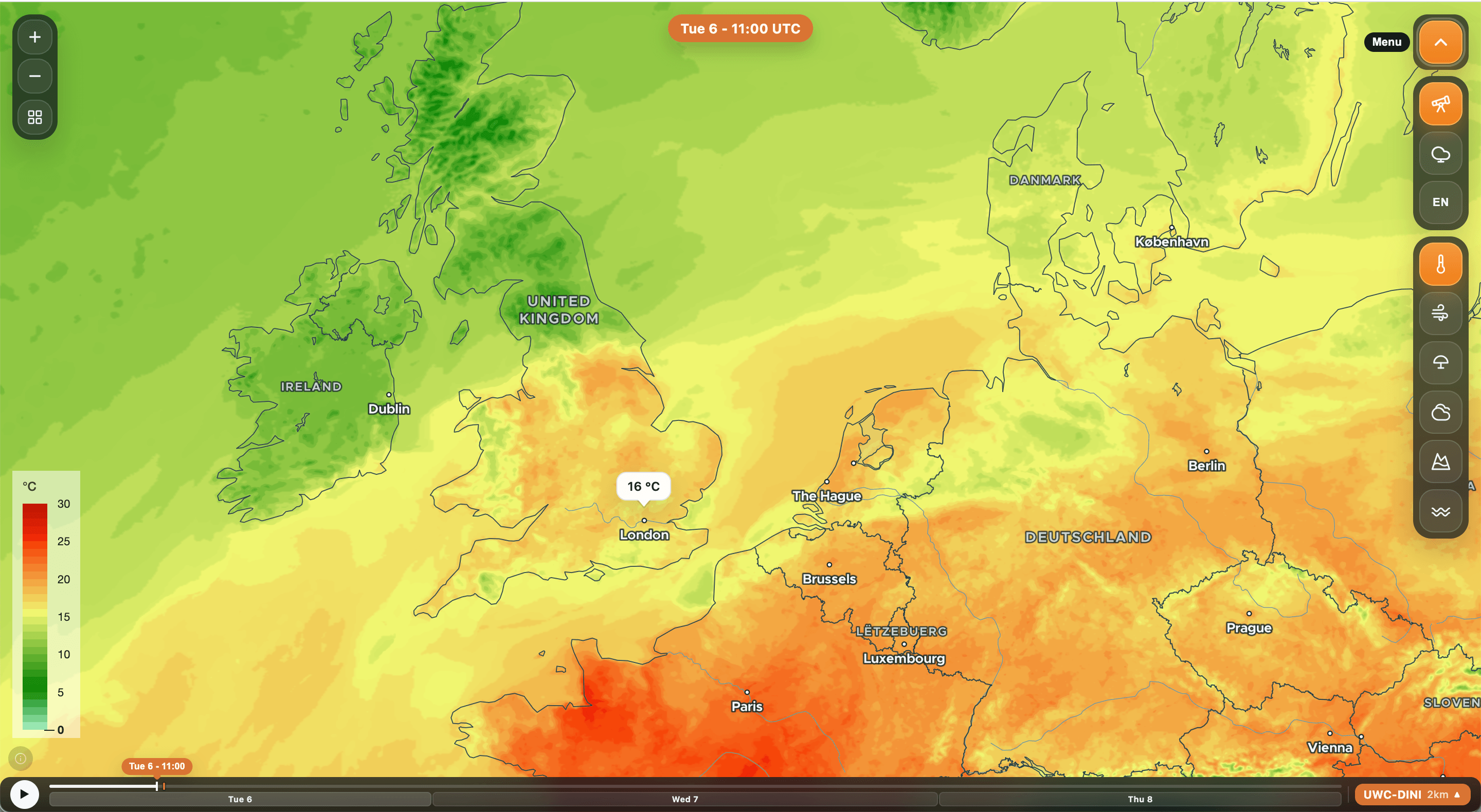
Open the menu at the top right. Select the telescope icon for weather maps or the cloud icon for weather symbols. You can also change the interface language here.
Choose a variable
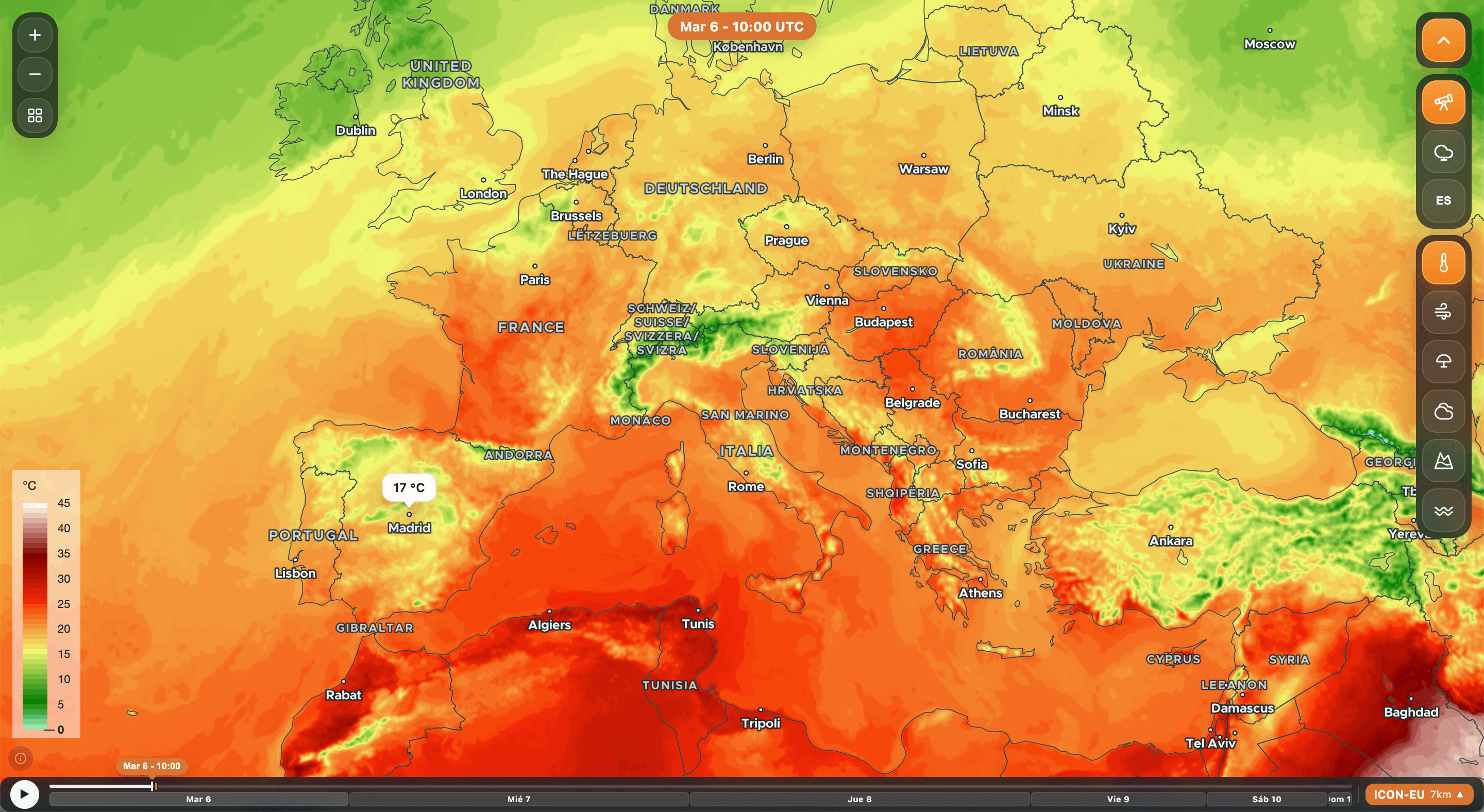
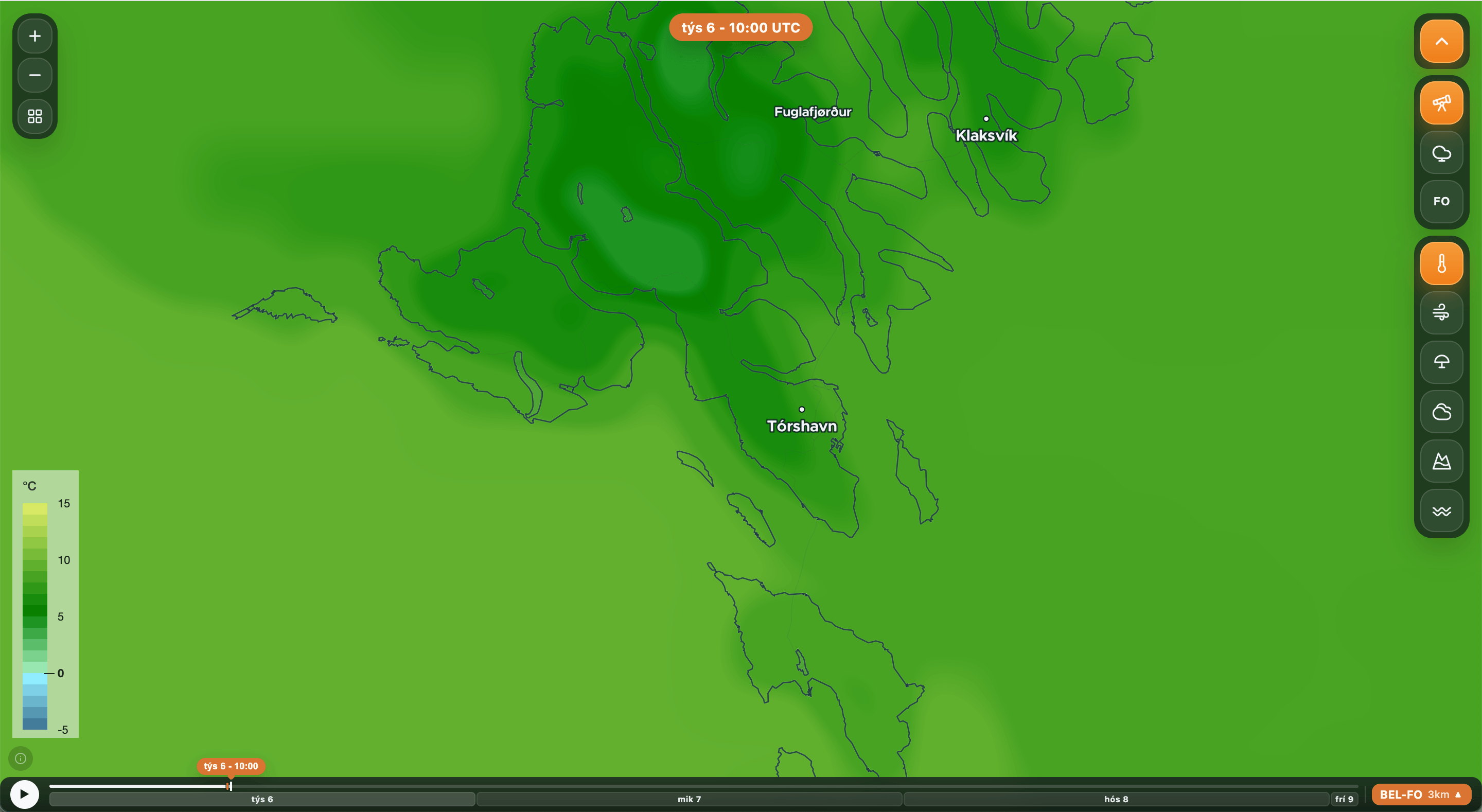
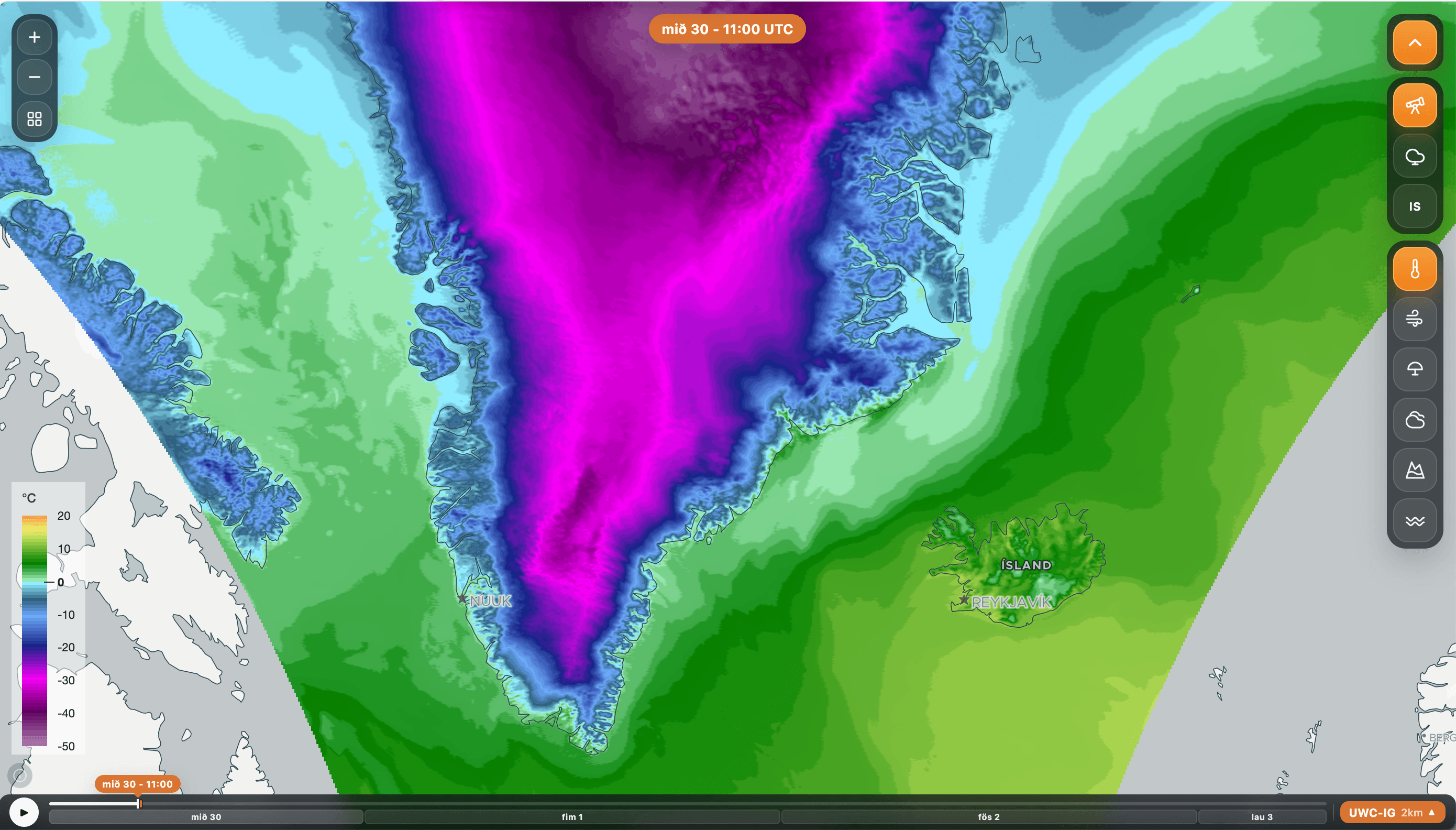
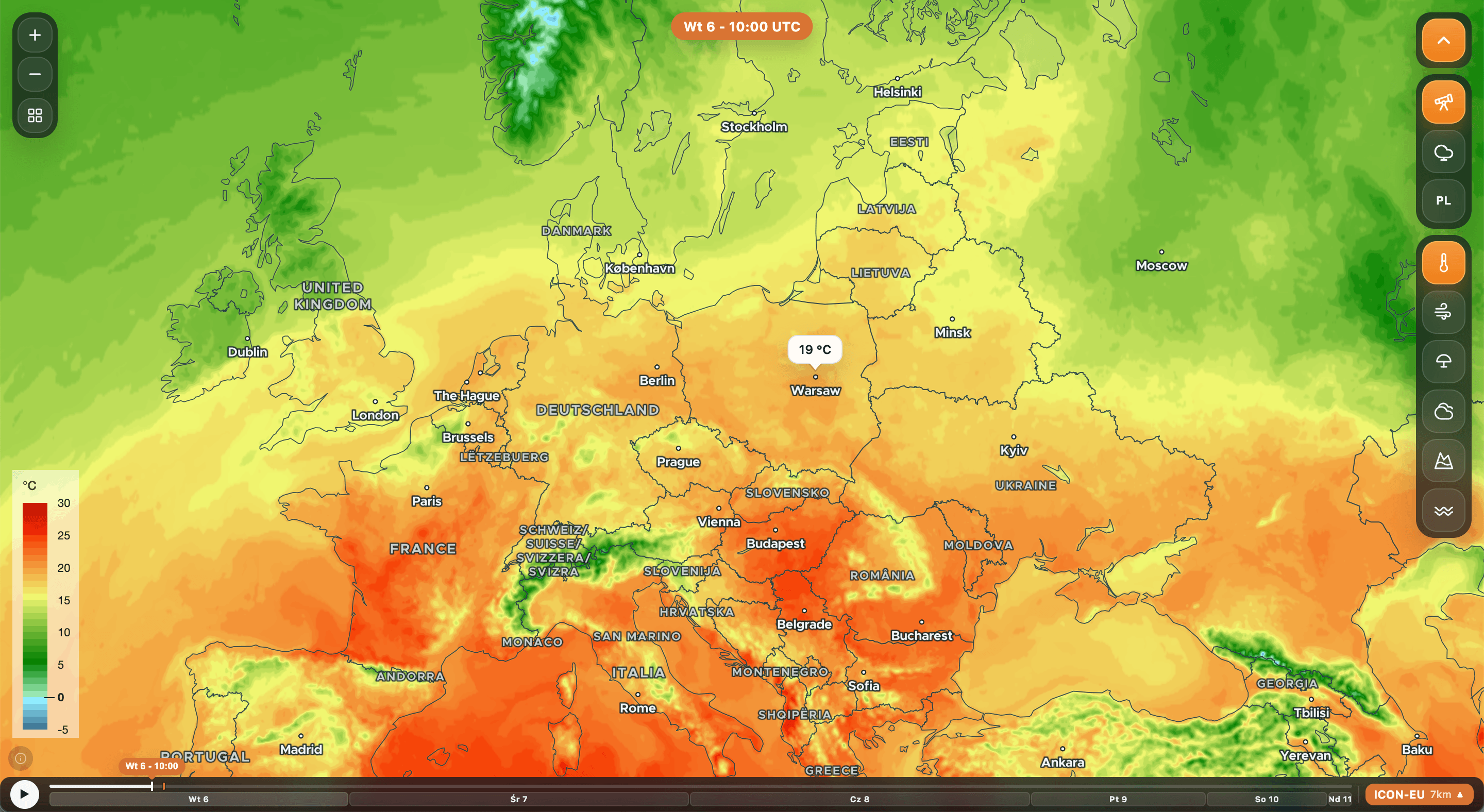
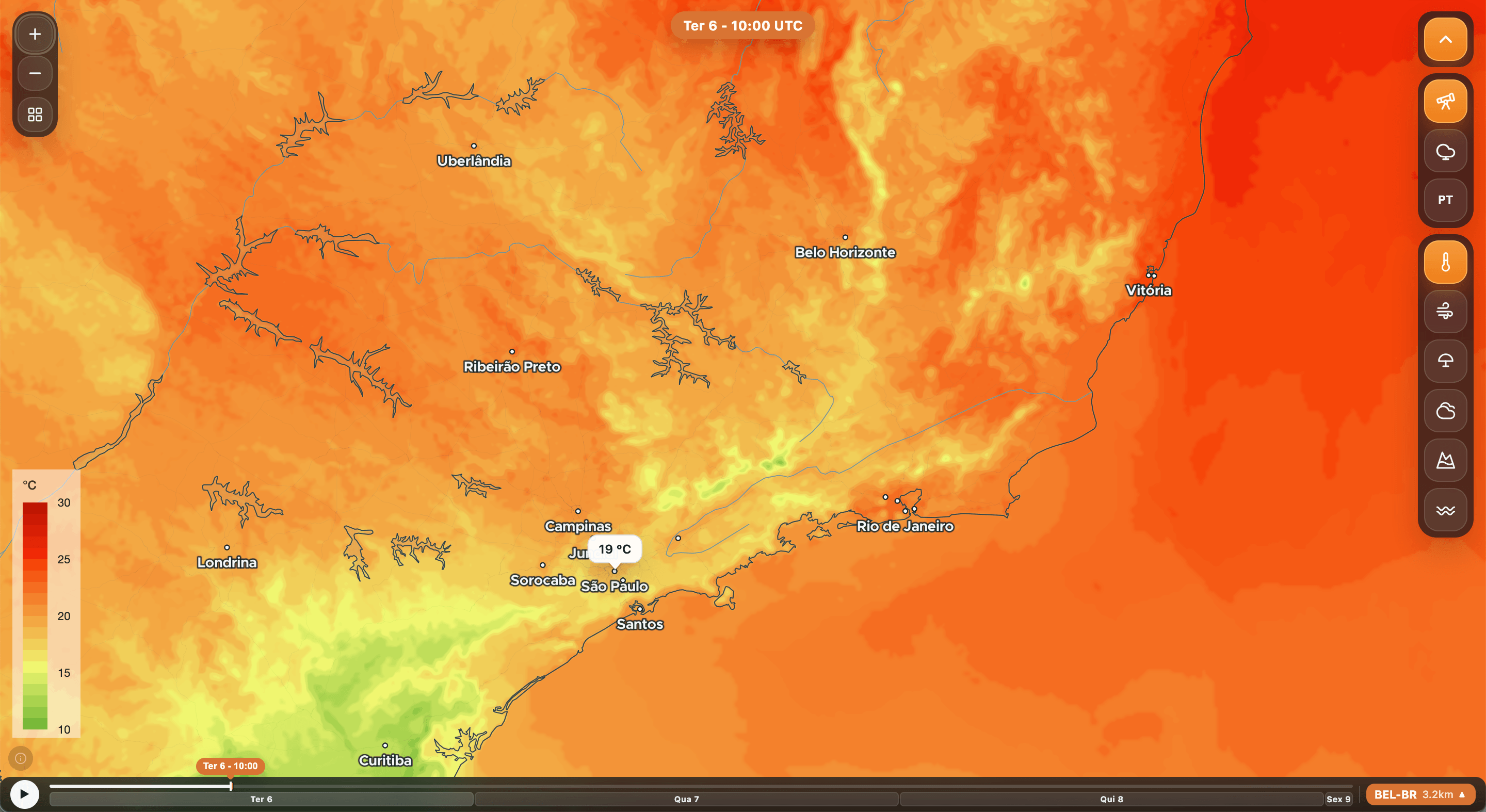
In the weather-map view, select temperature, wind, precipitation, clouds, snow cover, or ocean waves. Read the color scale on the left for values and units.
Choose a model
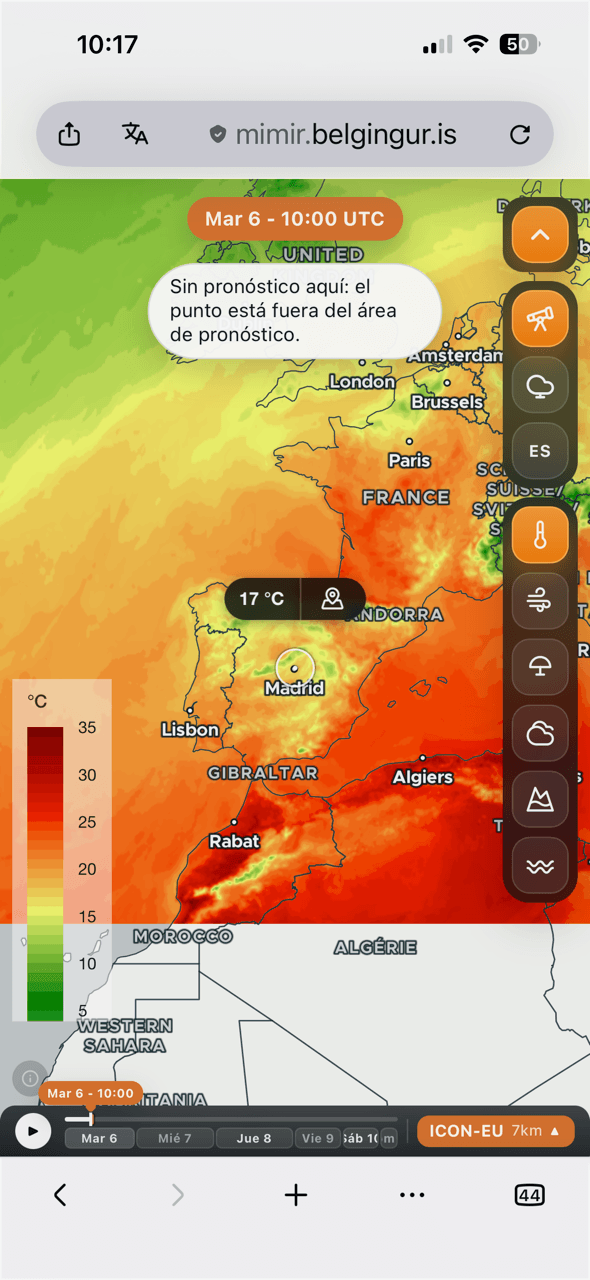
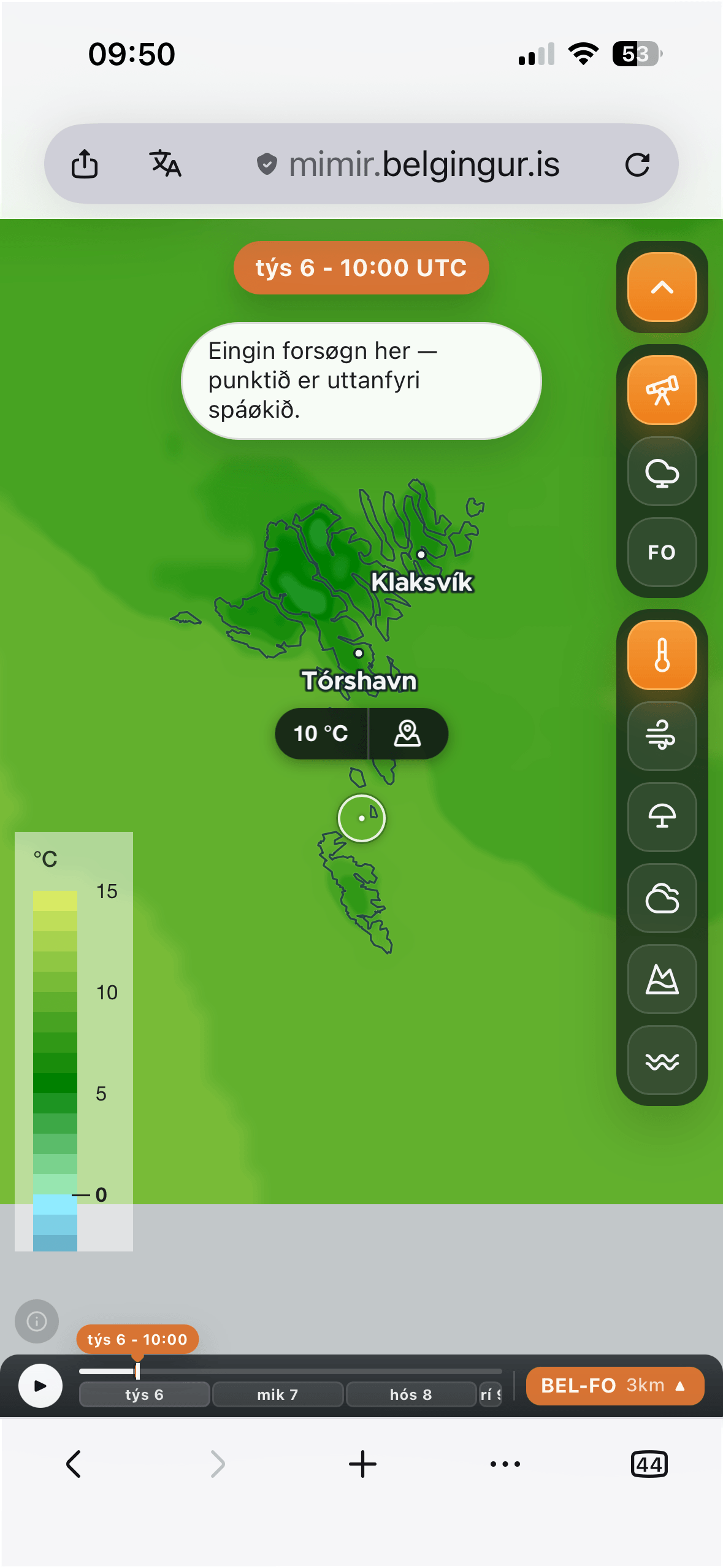
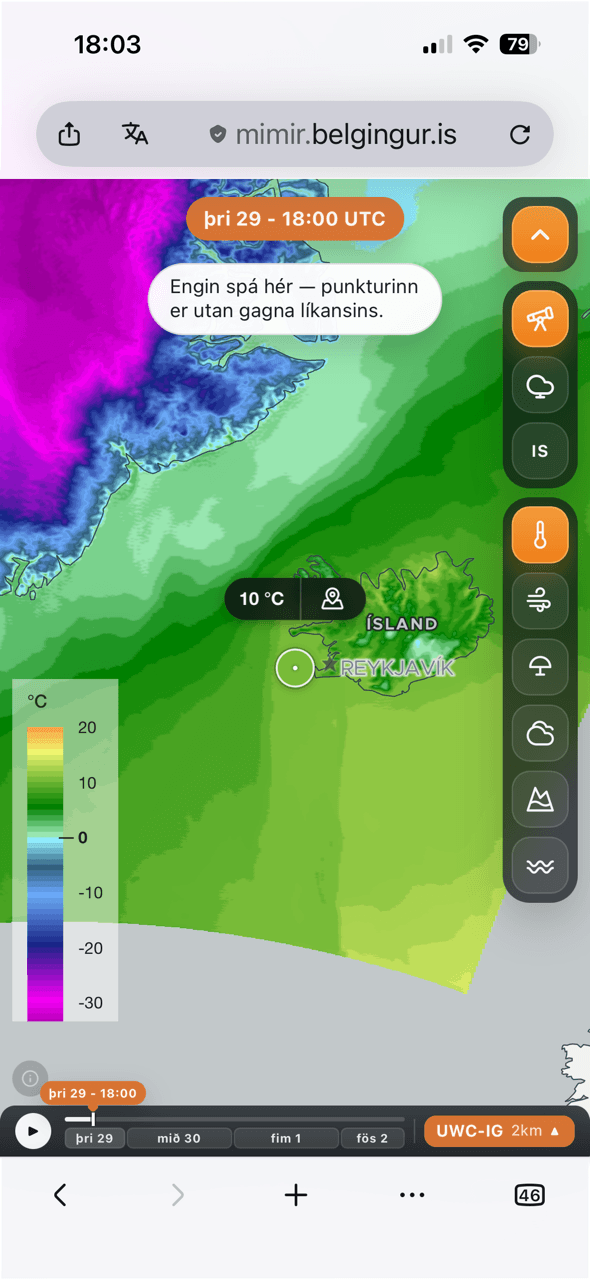
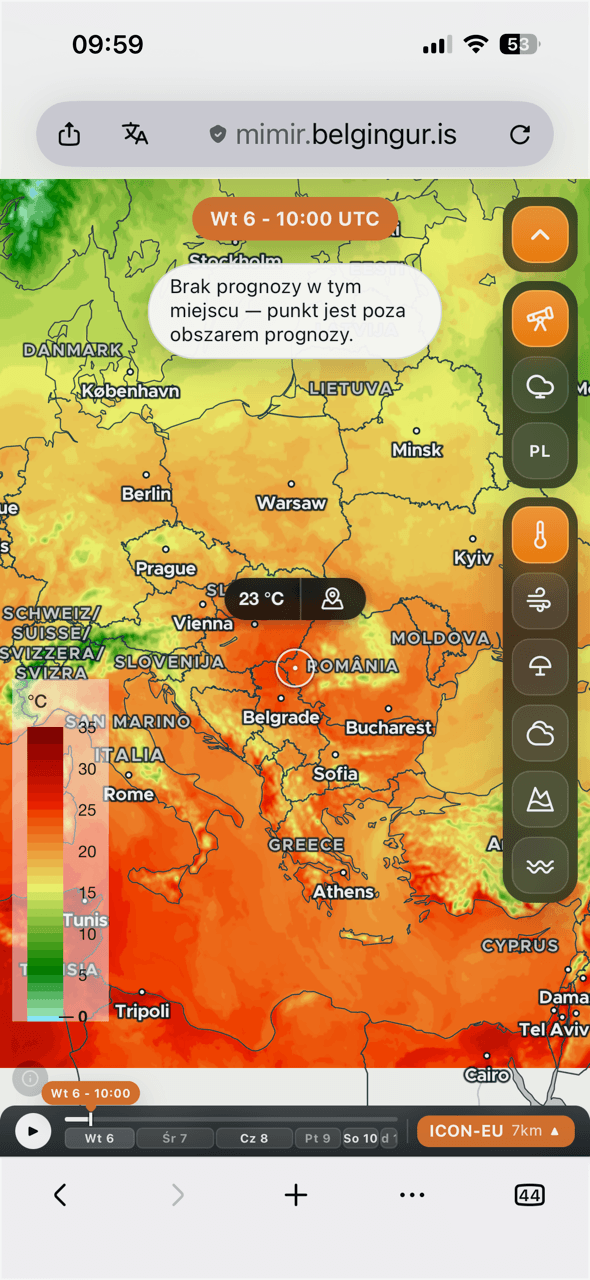
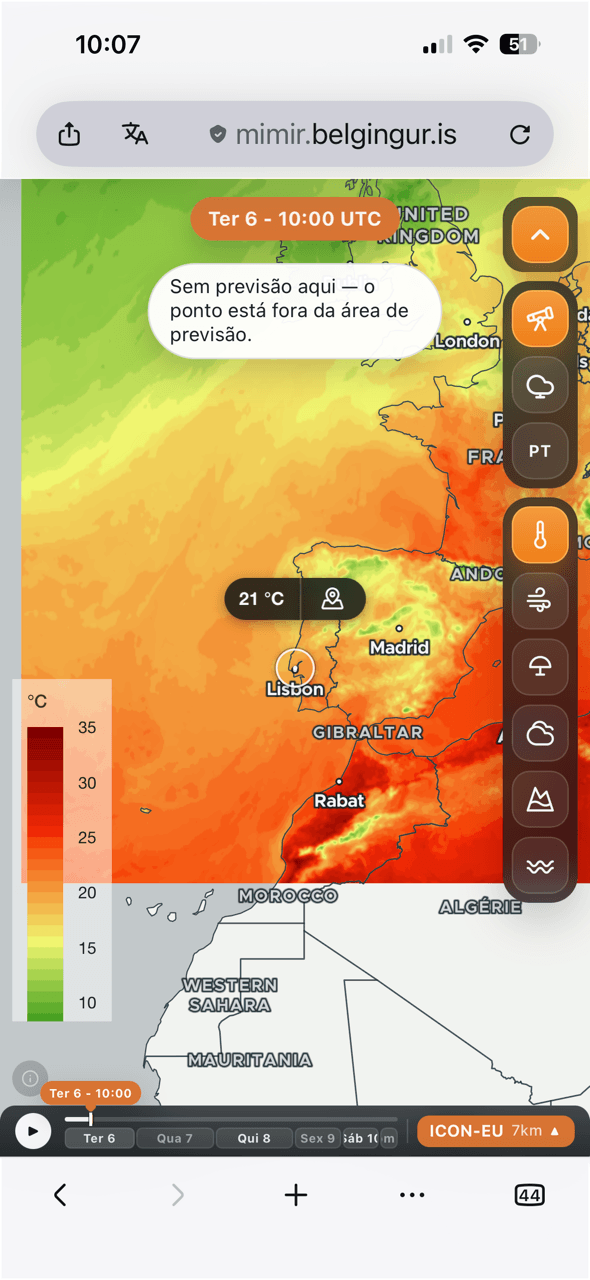
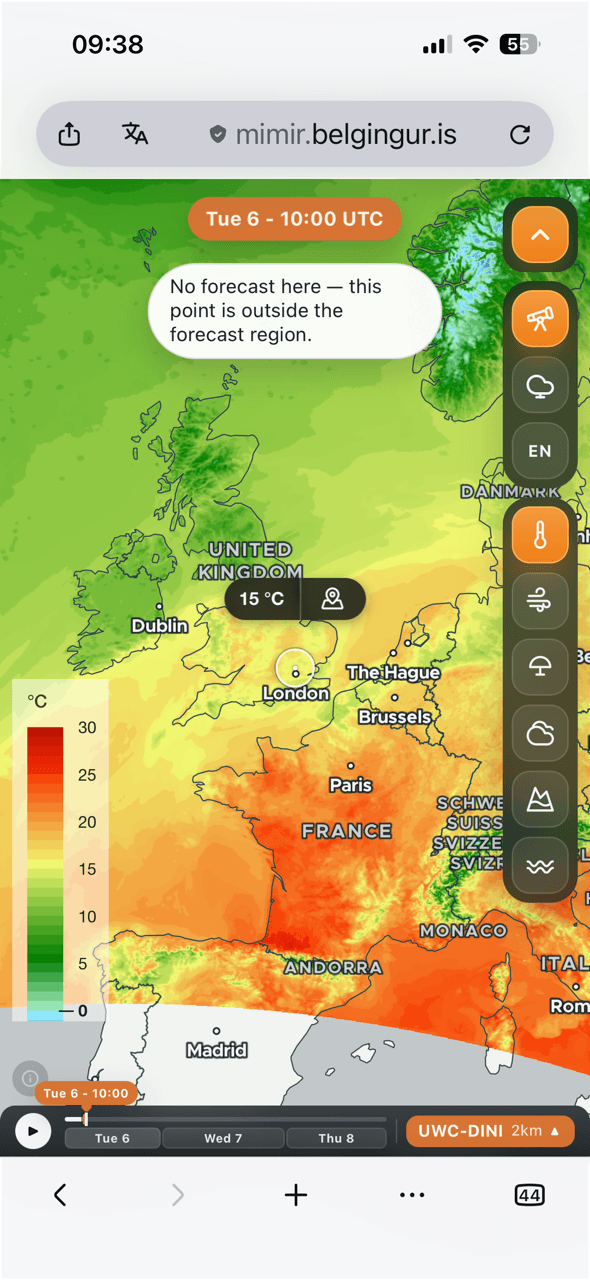
Select the model button at the bottom right, then choose a forecast model. Models cover different areas. If a location is outside the selected model’s coverage, a message explains that no forecast is available there.
Move through time
Use the slider at the bottom to explore forecast times. Select the play button to animate the maps. The date and time at the top identify the forecast currently shown.
On a computer
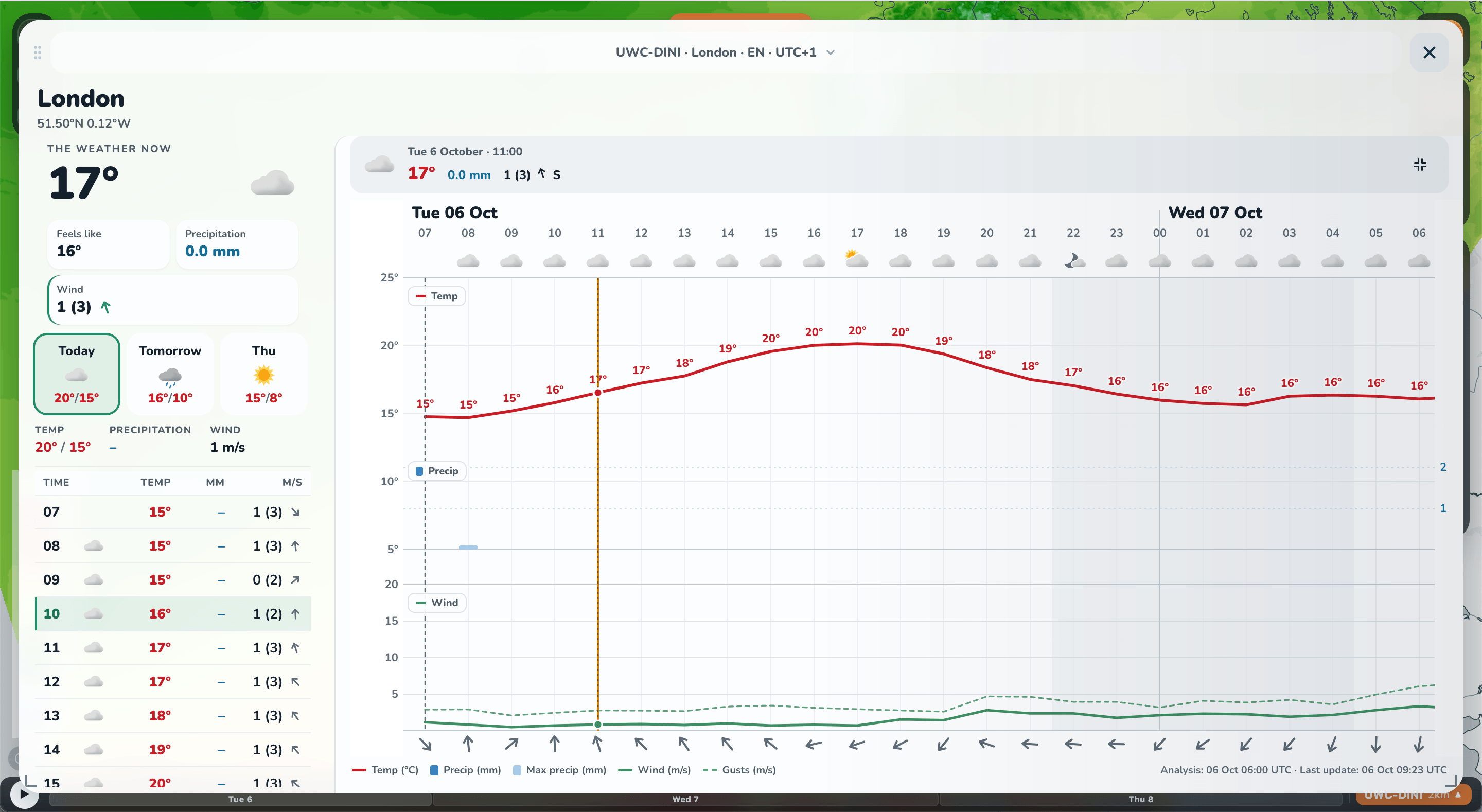
Click a location to open its detailed forecast.
Find a location
Hover over the map for a quick value, then click a location to open its detailed forecast. Use + and − to zoom. The grid button () adds latitude and longitude lines.
Explore the forecast
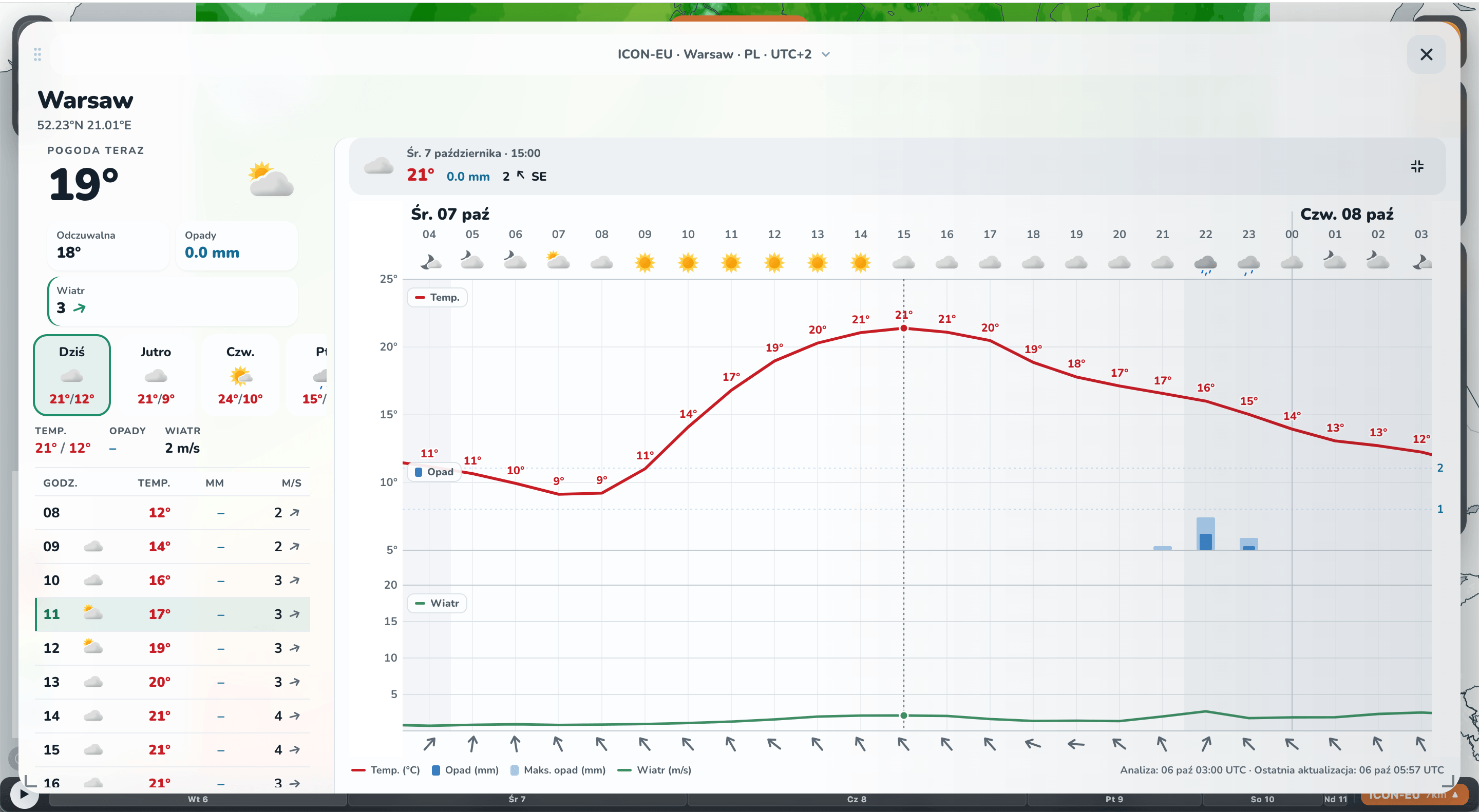
The coordinates at the top identify your location. Open the drop-down menu in the forecast header to change language or choose a nearby location.
Adjust the view
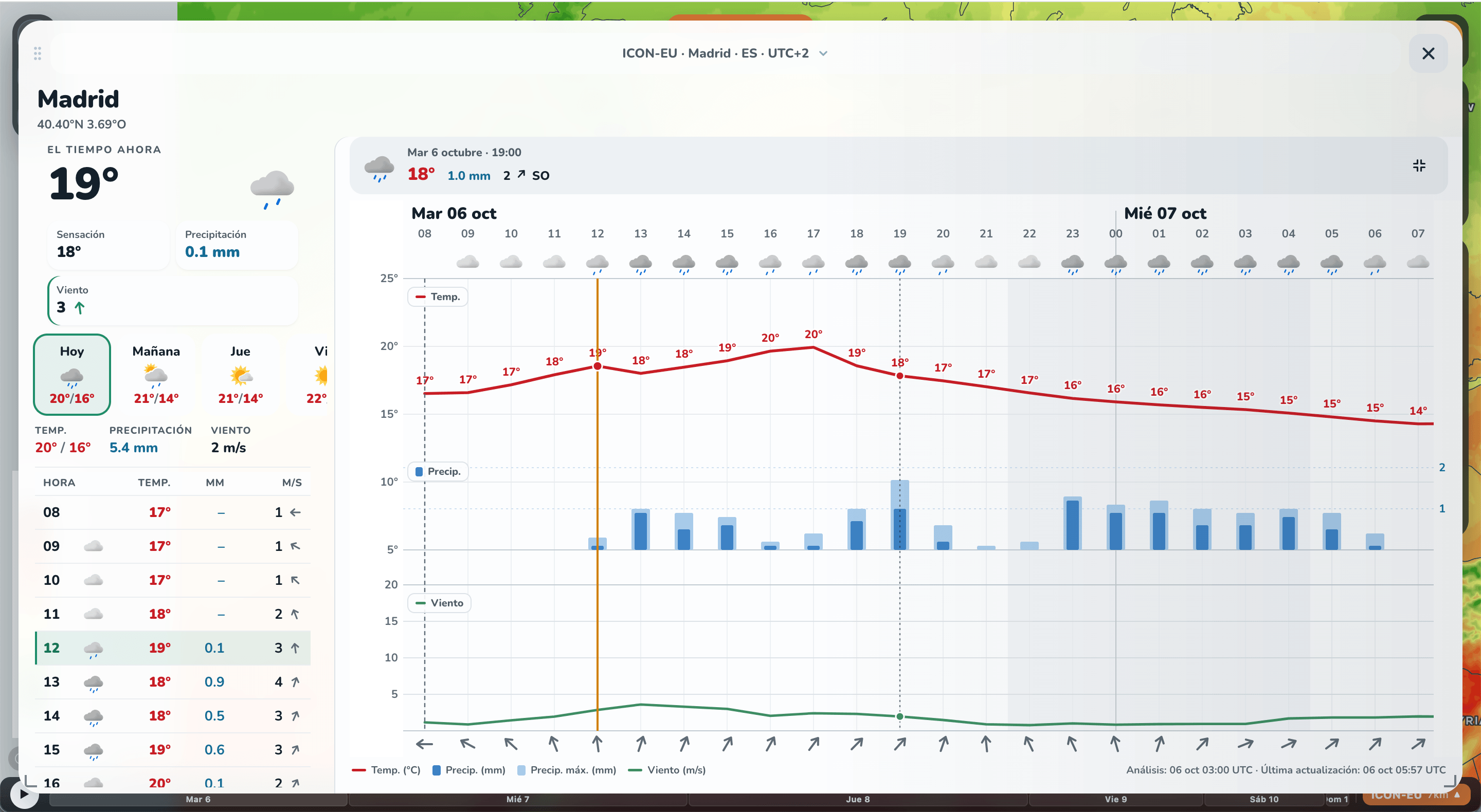
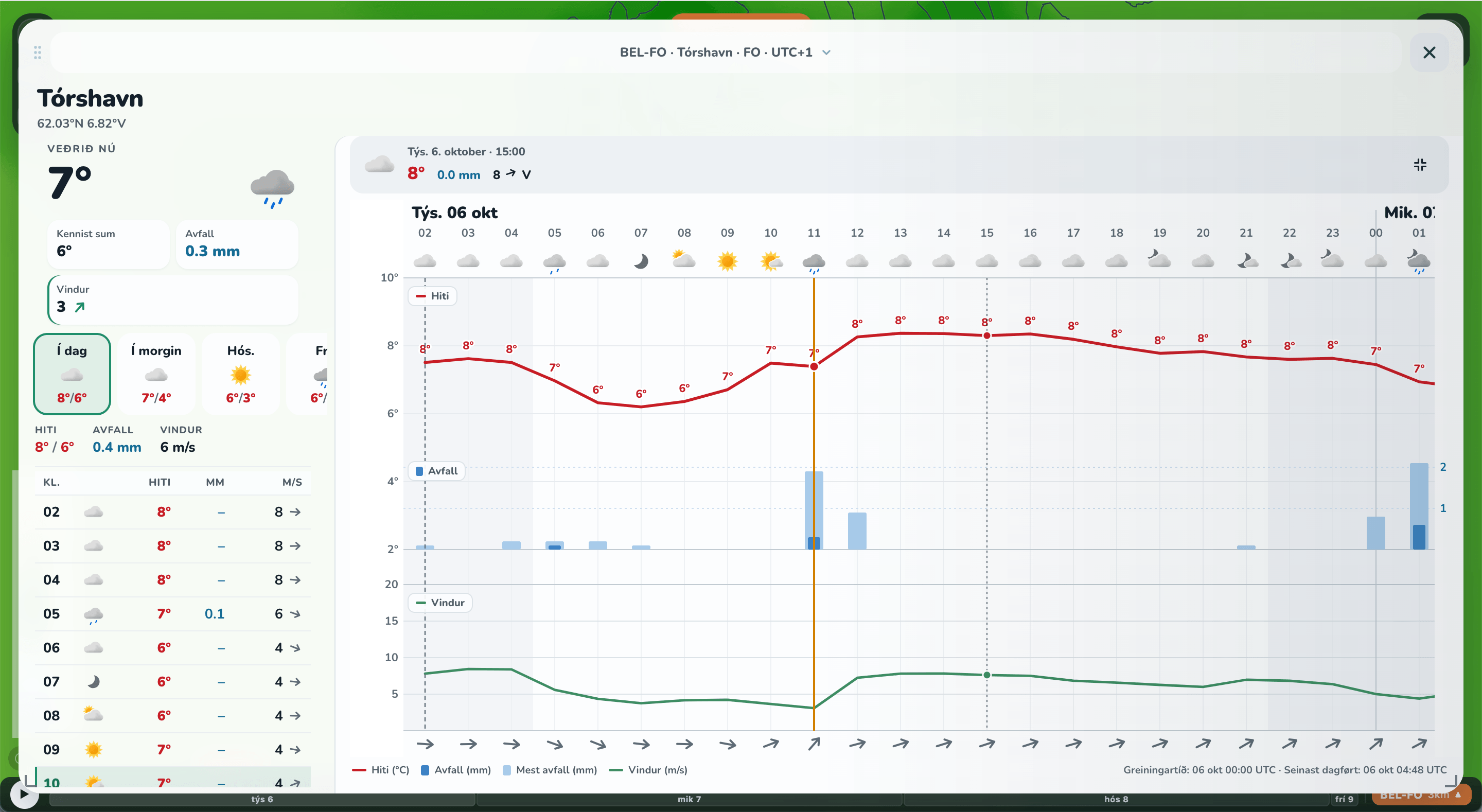
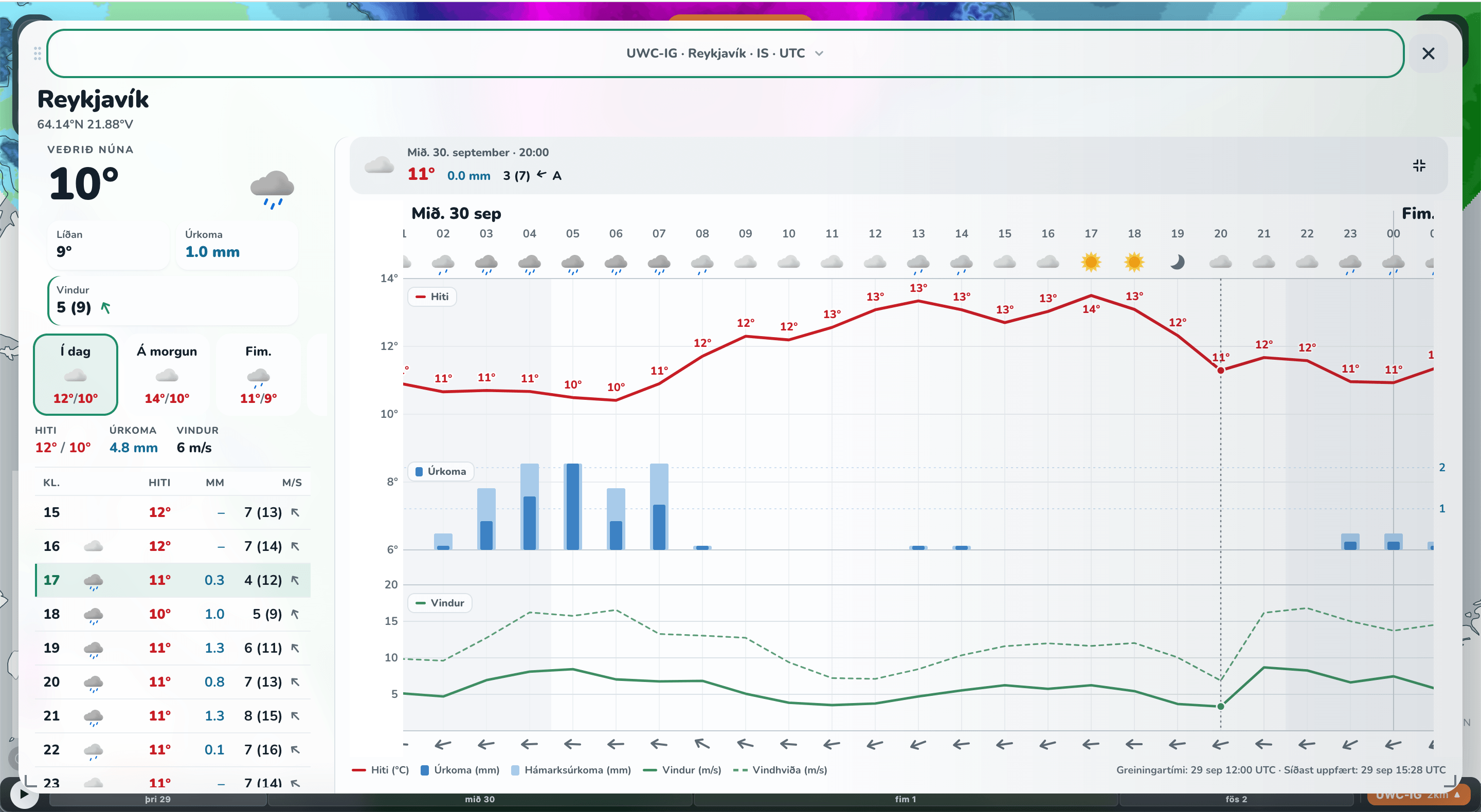
Use the expand/compact button to switch between a large forecast view and a smaller panel beside the map. In the compact panel, use the table and graph tabs to switch views. Select × to close the forecast.
Read the weather at a glance
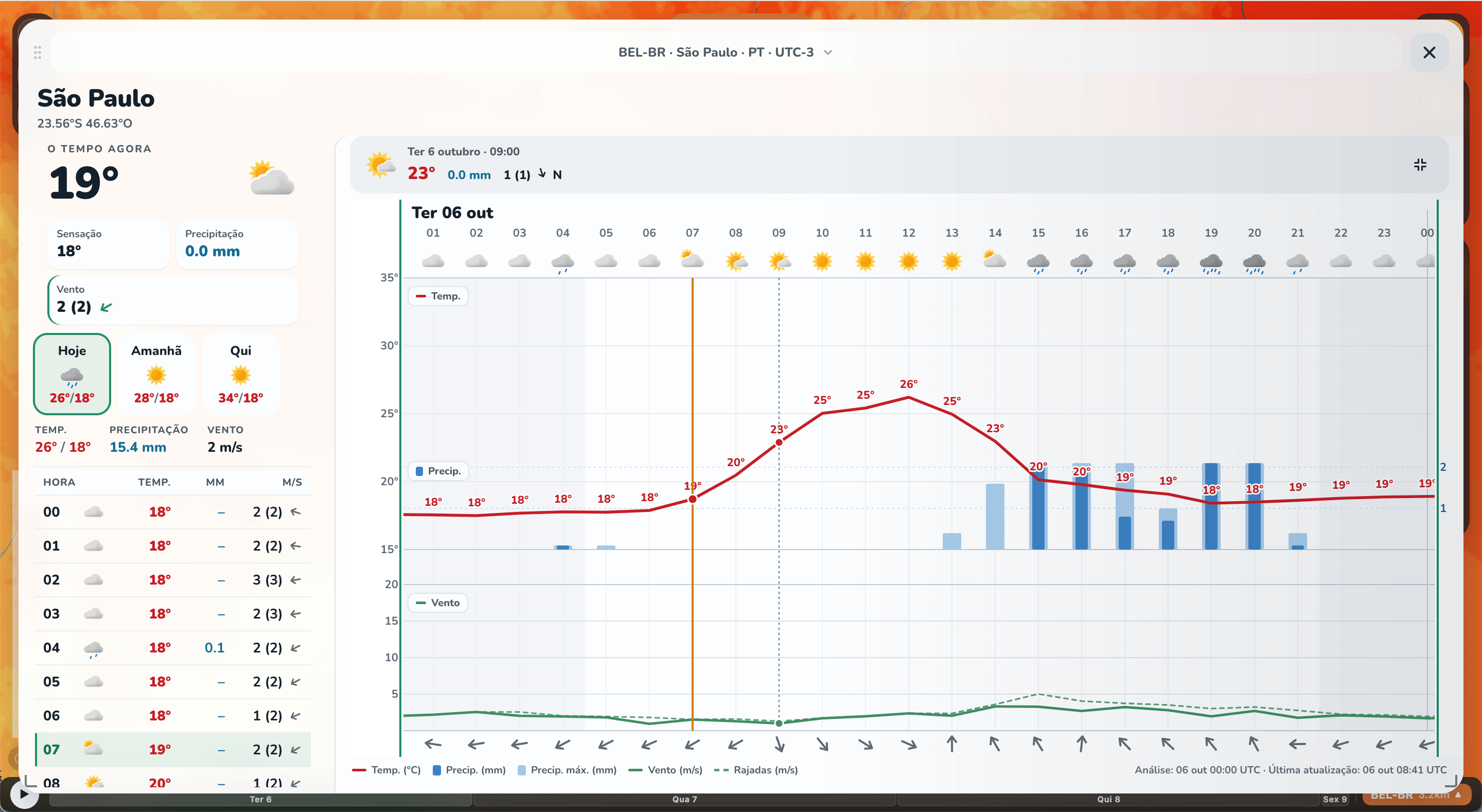
Use the meteogram to compare temperature, precipitation, and wind over time. The legend under Read the forecast explains its lines, bars, symbols, and time markers.
On a phone
Move the map to select a location, then explore its forecast.
Select your location
Move the map until your chosen location is under the crosshair. Tap the location icon above the crosshair to open the local forecast.
Explore the graph
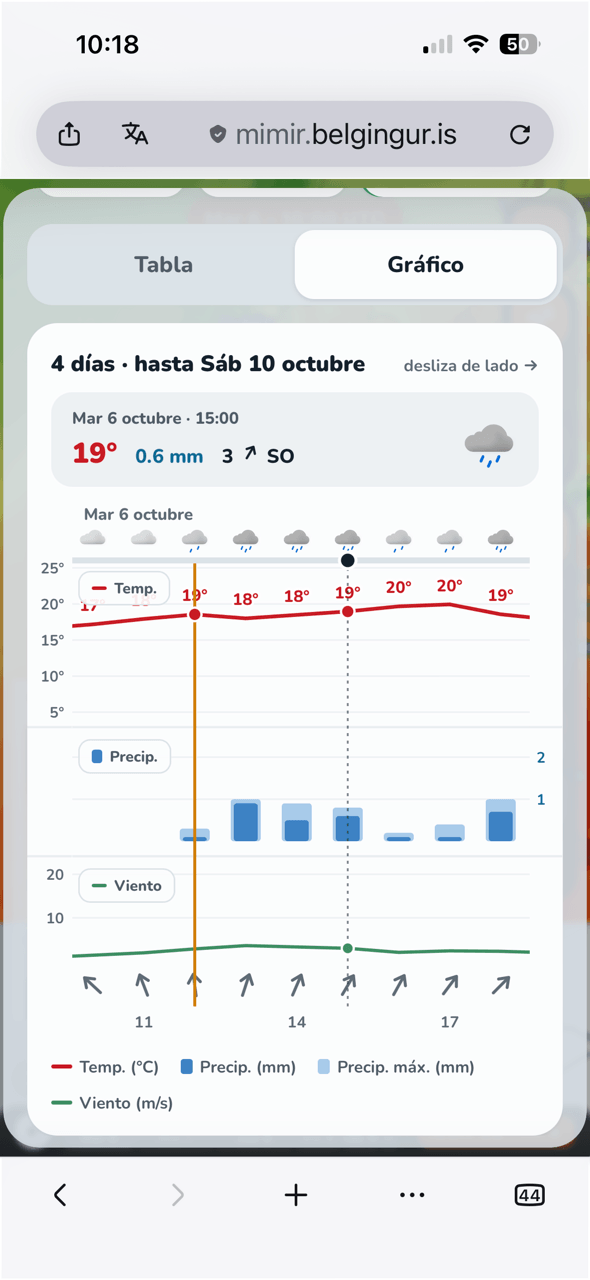
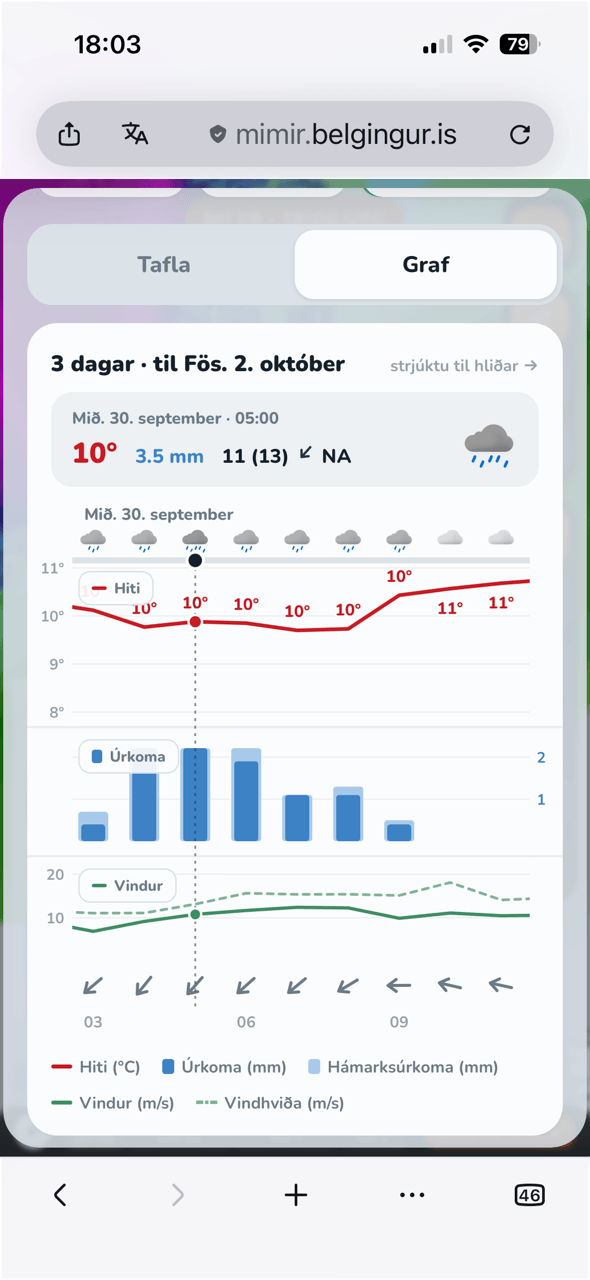
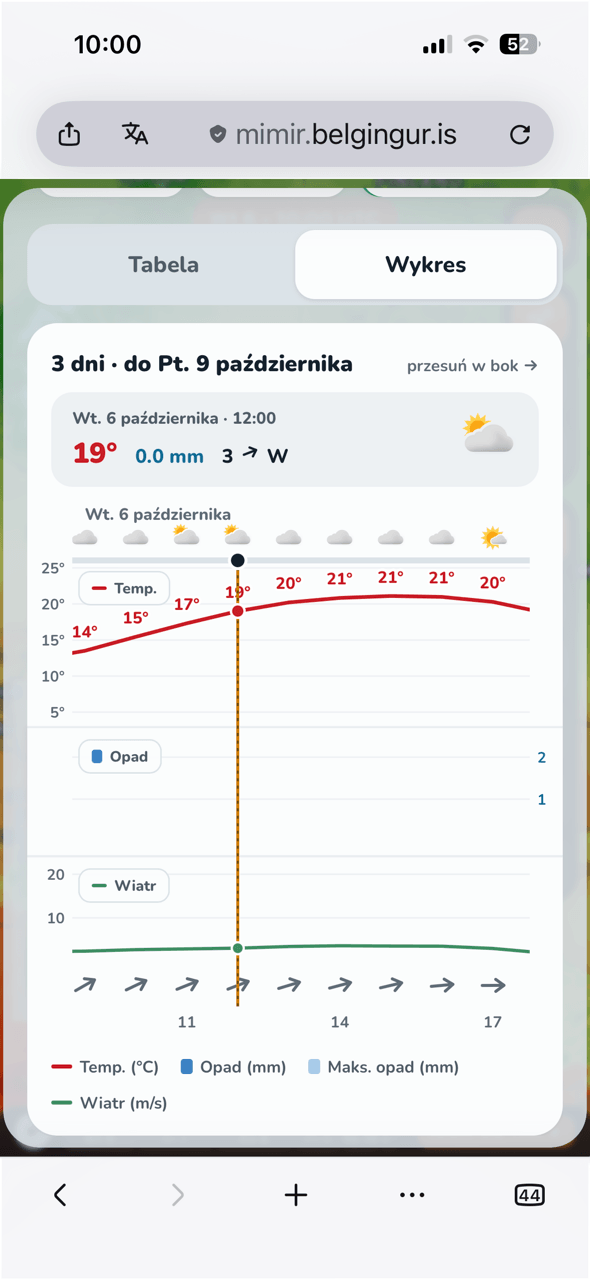
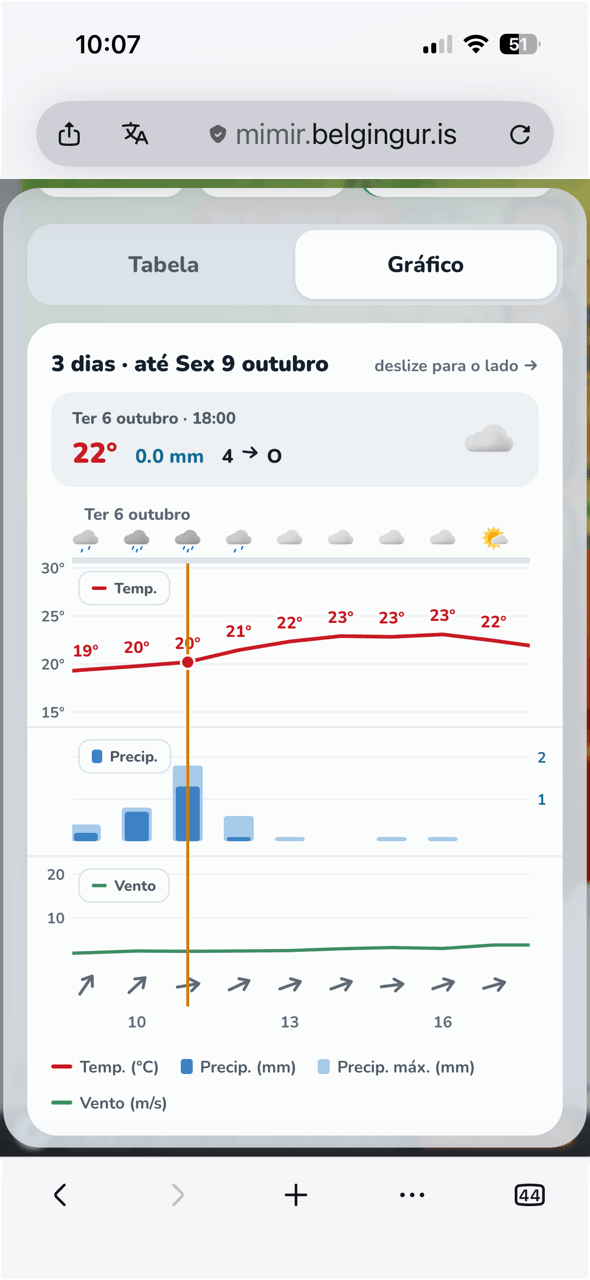
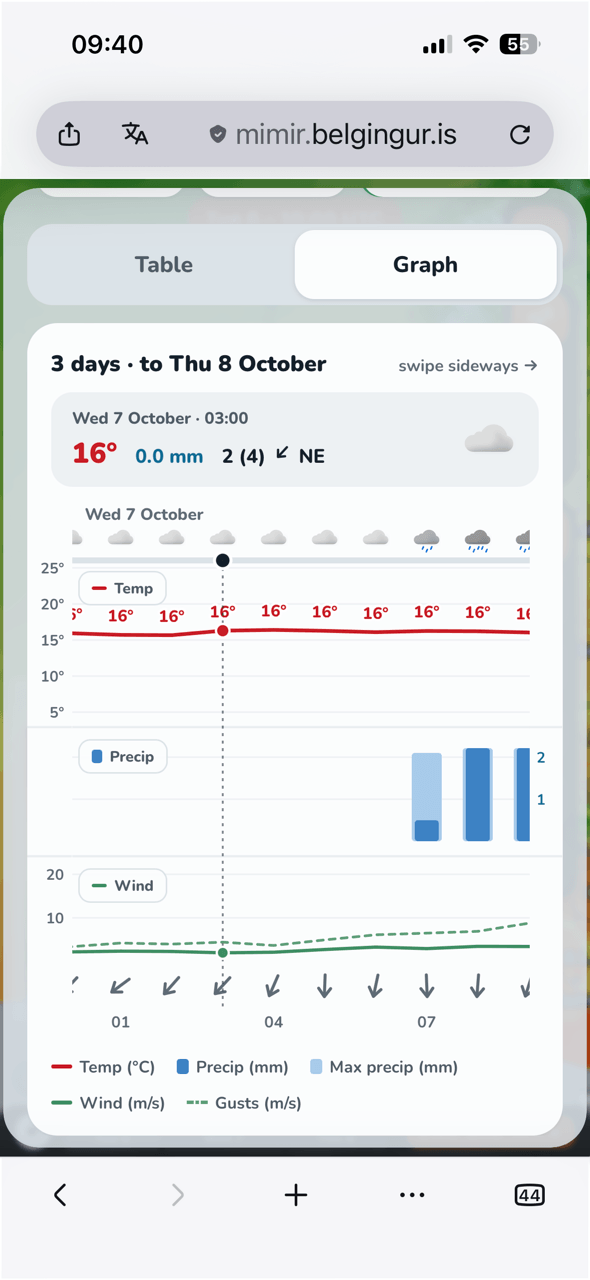
Scroll vertically through the forecast panel. Swipe left or right across the graph to explore forecast times. Tap the graph to see weather details for the selected time.
Switch views
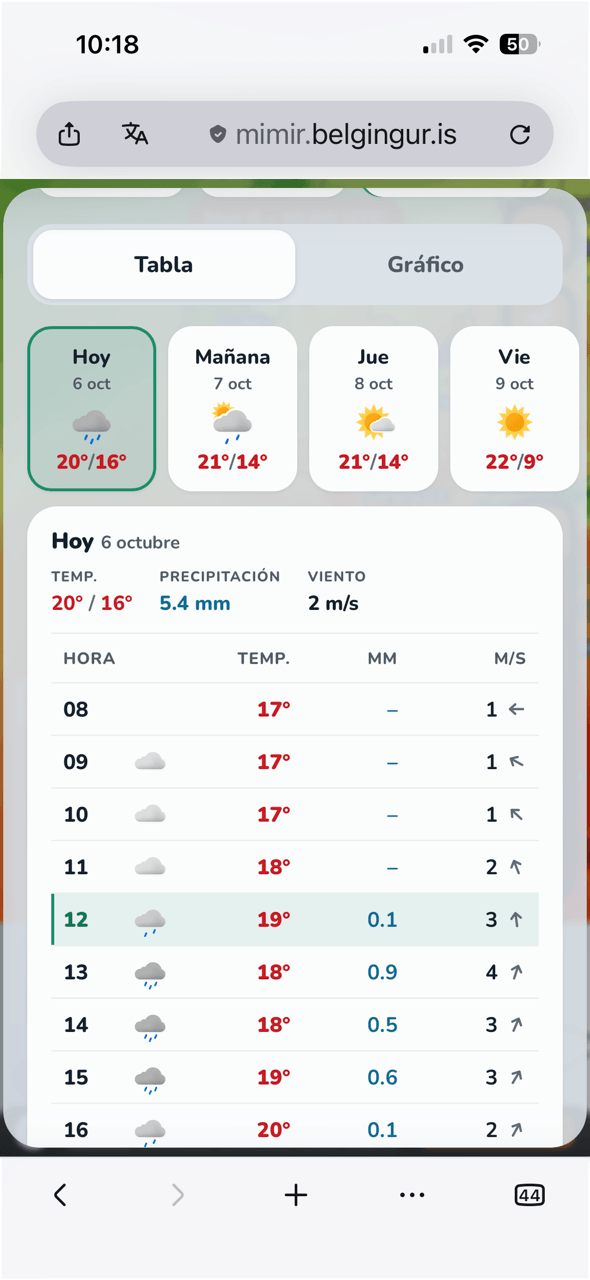
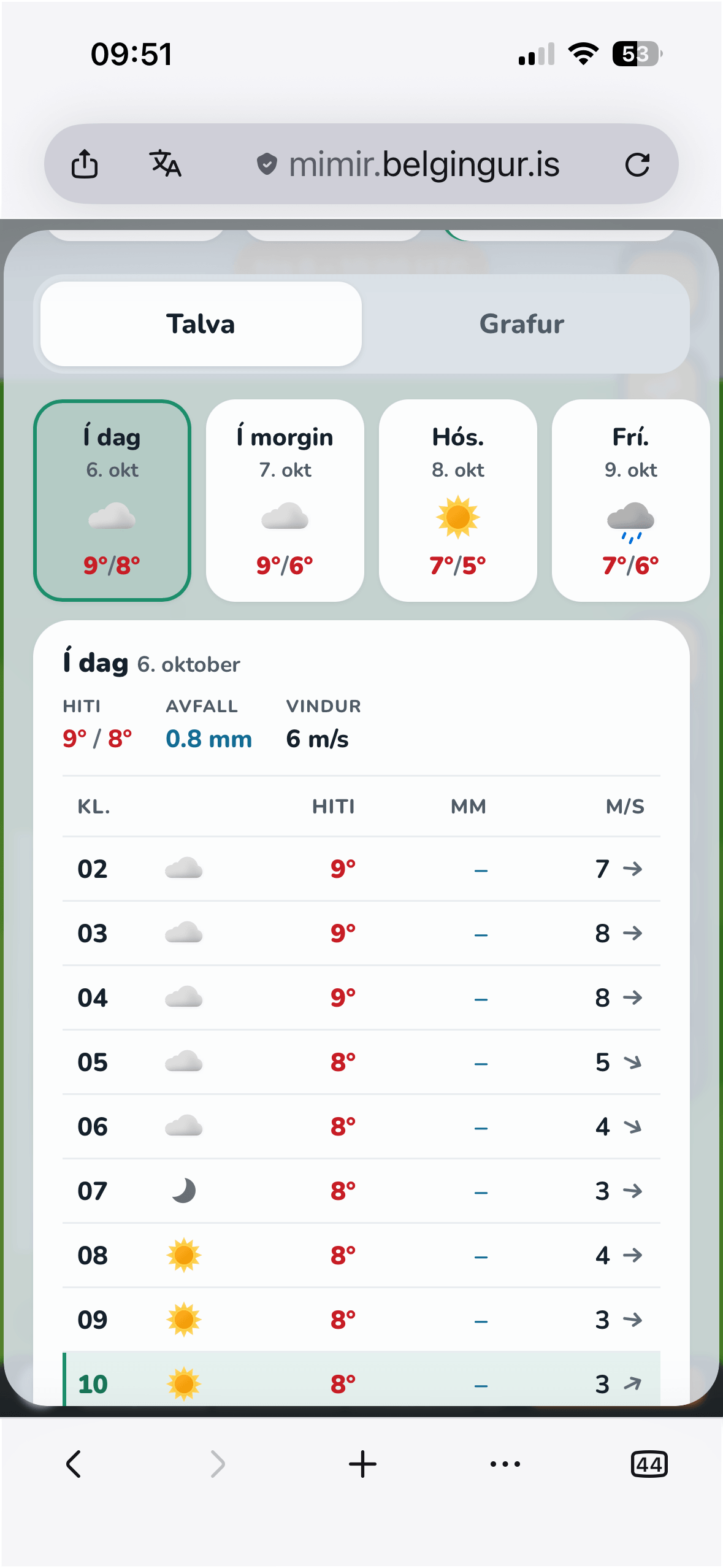
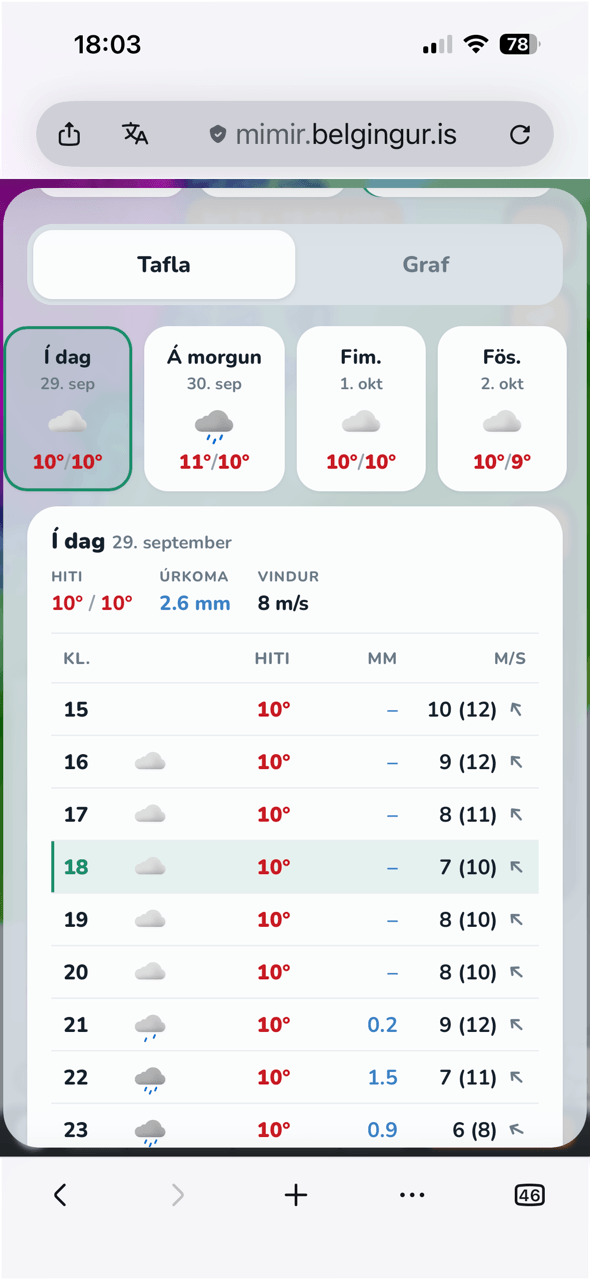
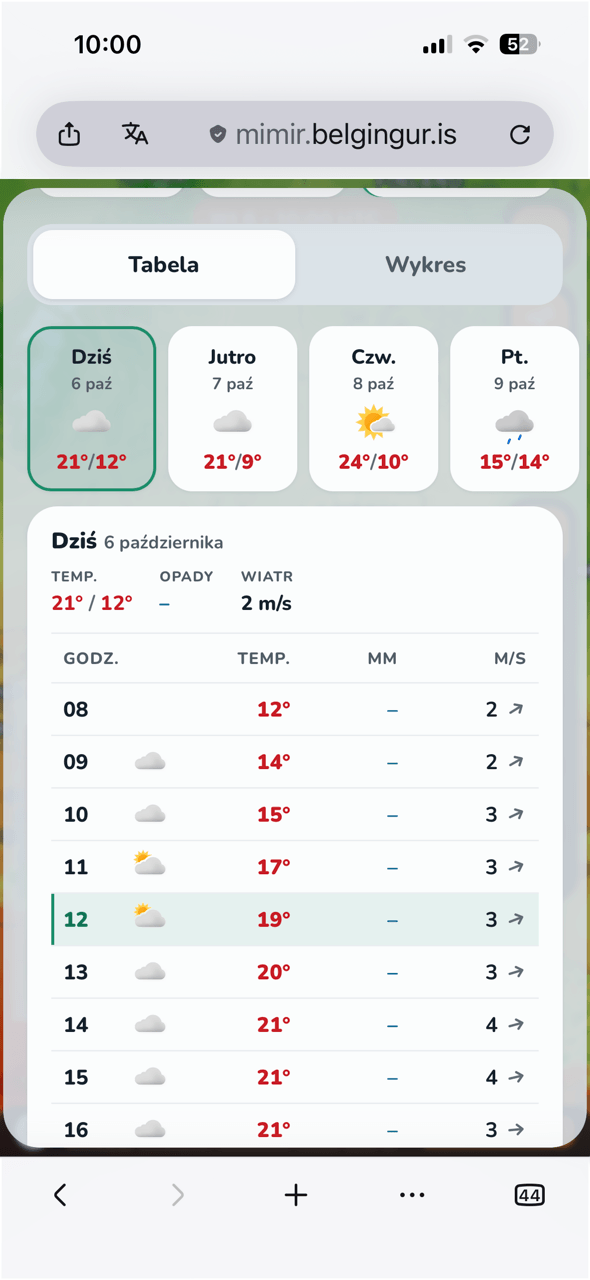
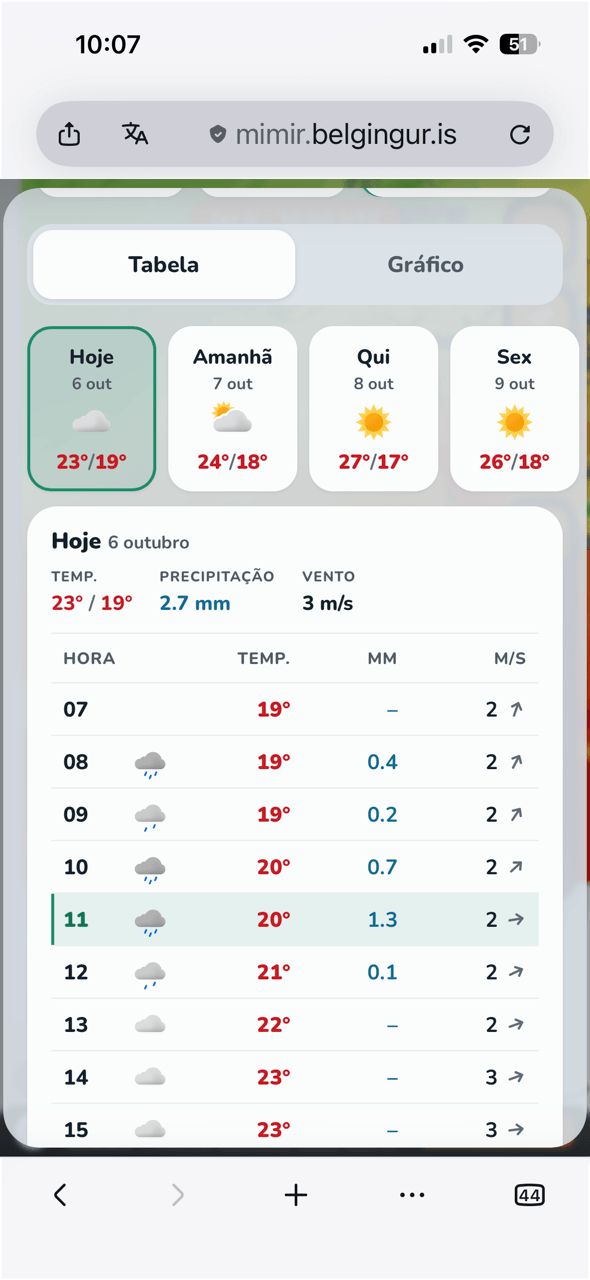
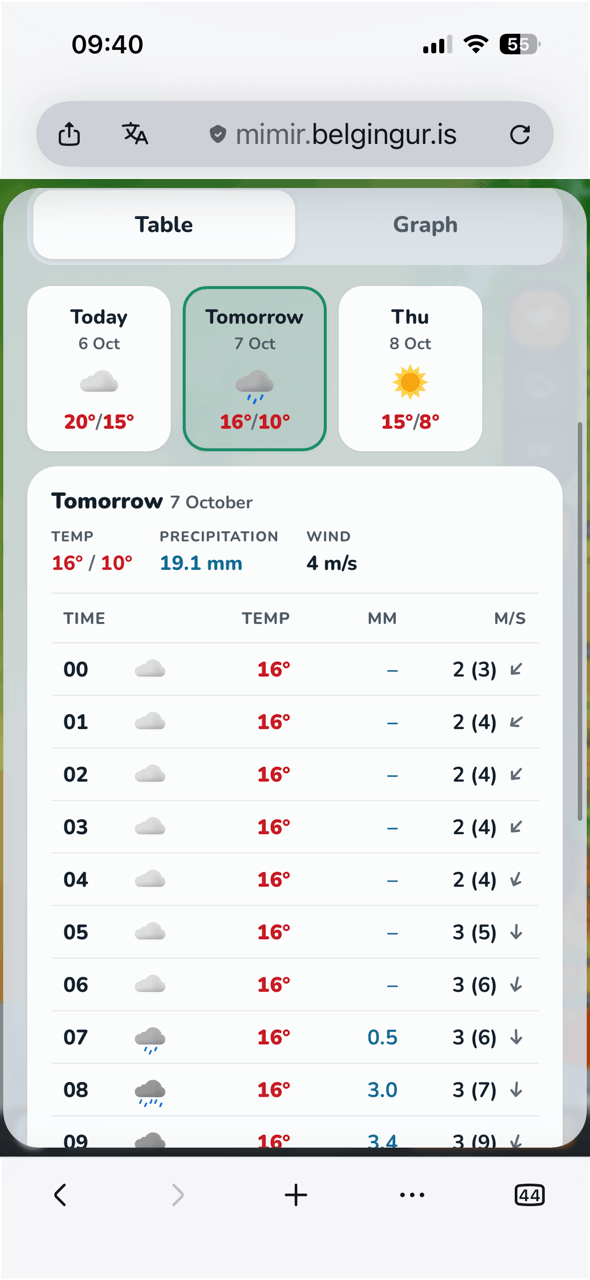
Use the Table and Graph tabs. Turn your phone sideways for landscape orientation. Select × to close the forecast.
Read the forecast
A meteogram shows how the weather is forecast to change at your location.
- Weather symbols
- The icons above the graph show whether sunny or cloudy conditions are forecast at each time.
- Red line
- Temperature in degrees Celsius (°C).
- Solid green line
- Wind speed in metres per second (m/s).
- Dashed green line
- Wind gusts in metres per second (m/s).
- Wind arrows
- Arrows point towards the direction the wind is blowing.
- Dark blue bars
- The most likely hourly precipitation at the selected location, in millimetres (mm).
- Light blue bars
- The maximum forecast precipitation in the vicinity of the selected location, in millimetres (mm).
- Time markers
- The orange vertical line marks the present time. Thin vertical lines mark midnight; the shaded background represents nighttime.
Precipitation covers the preceding hour
A precipitation bar labelled 15:00 shows the accumulated precipitation from 14:00 to 15:00. The light blue bar shows the amount forecast at the wettest location nearby, it is not necessarily forecast at your exact location.
Present time and selected forecast time
“Weather now” refers to the present time. When you select a time in the graph, its information box shows the weather for that selected time. Check the date and time when exploring future conditions.